Watching IPTV on Smart TV is the simplest setup of all: no stick, no box and no extra remote, just an app on the TV you already own. This guide shows you how to set up IPTV on Smart TV models from Samsung, LG, Android TV and others in 2026, which apps work best on each brand, and how to get a smooth, sharp picture.
Why watch IPTV on Smart TV?
A Smart TV is already connected to the internet and can install apps from its own store. That means you can enjoy IPTV on Smart TV screens without buying any extra hardware. You use the remote you already know, the picture goes straight to the screen without an HDMI device in between, and there are no extra cables behind the TV.
- No extra device: everything runs inside the TV.
- One remote: channels, volume and apps from the same remote.
- Big-screen quality: many Smart TVs support 4K and HDR.
- Quick to set up: most people are watching within 10 minutes.
The main limitation of IPTV on Smart TV is that each brand has its own operating system and app store, so the best app depends on your TV. That is exactly what this guide explains.
Check your TV first
Before installing anything, check three things so your IPTV on Smart TV setup works the first time:
- The operating system: Samsung uses Tizen, LG uses webOS, Sony, Philips, TCL and others often use Android TV or Google TV, and many Hisense models use VIDAA. You can find it in the TV settings under About or Support.
- Software updates: install the latest TV update. Old software is a frequent cause of apps not appearing in the store or closing unexpectedly.
- The connection: connect the TV with an Ethernet cable if possible. TV Wi-Fi chips are often weaker than those in phones or streaming sticks.
Good to know: very old Smart TVs, roughly older than 2017, may not support modern IPTV apps. In that case, a Firestick is an inexpensive way to upgrade. See our guide to IPTV on Firestick.
How to set up IPTV on Smart TV from Samsung (Tizen)
Samsung Smart TVs run Tizen and use the Samsung Apps store. Popular IPTV players for Samsung include IBO Player Pro, Flix IPTV, SET IPTV and BOB Player.
- Press the Home button and open Apps.
- Search for the player you chose, for example IBO Player Pro, and install it.
- Open the app. The first screen shows a MAC address and often a device key. Write them down or take a photo.
- On your phone or computer, open the app developer’s official website and go to the playlist upload page.
- Enter the MAC address and device key, then add your M3U link or Xtream Codes details.
- Restart the app on the TV. Your channels, movies and series appear.
Many of these Smart TV apps offer a free trial and then need a small one-time activation. If you prefer, you can buy the activation from us, for example IBO Player Pro activation, and our team activates it for you.
How to set up IPTV on Smart TV from LG (webOS)
LG Smart TVs run webOS and use the LG Content Store. The process is very similar to Samsung, and several of the same apps are available.
- Press the Home button and open the LG Content Store.
- Search for IBO Player Pro, Flix IPTV or BOB Player and install it.
- Open the app and note the MAC address and device key shown on screen.
- Add your playlist on the developer’s website using those details.
- Restart the app and start watching.
On LG, the Magic Remote pointer makes browsing large channel lists quick. Use the favourites feature in your app to keep your main channels at the top.
How to set up IPTV on Smart TV with Android TV or Google TV
Sony, Philips, TCL, Xiaomi and many other brands use Android TV or Google TV. These TVs have the widest choice of apps, because they use the Google Play Store, which makes IPTV on Smart TV models with Android especially easy.
- Open the Google Play Store on the TV.
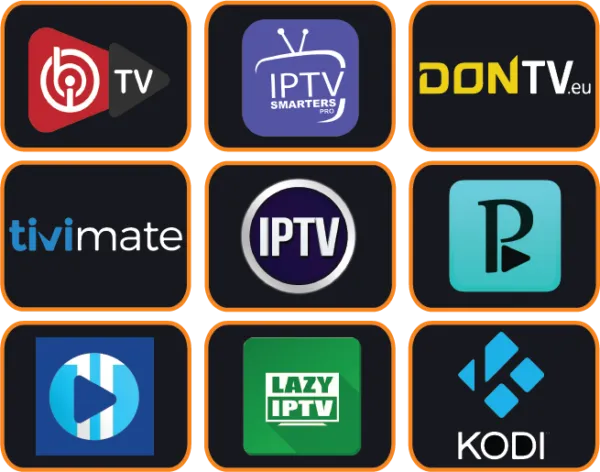
- Search for TiviMate, IPTV Smarters Pro or OTT Navigator and install it.
- Open the app and choose Xtream Codes login.
- Enter your username, password and server URL exactly as they appear in your welcome message.
- Wait a moment while the app loads live TV, movies, series and the TV guide.
On Android TV, TiviMate is our top recommendation: it shows a classic TV guide grid, zaps very quickly and, with TiviMate Premium, adds recording, catch-up and multiple playlists. If you prefer the simplest possible interface, IPTV Smarters Pro is a great alternative.
IPTV on Smart TV from Hisense, TCL, Philips and other brands
Hisense (VIDAA)
Many Hisense TVs use the VIDAA system, which has a smaller app store. Some IPTV players are available there; if yours is not, adding a Firestick or an Android TV box is the easiest solution and gives you access to all the popular apps.
TCL, Philips, Sony and Xiaomi
Most recent models from these brands run Android TV or Google TV, so you can follow the Android steps above. Older Philips models may run other systems: check the app store on your TV first.
Roku TV and Fire TV Edition
Roku has a limited choice of IPTV players. TVs with Fire TV built in work exactly like a Firestick, so the Firestick guide applies to them.
Older Smart TVs
If your TV is too old to install modern apps, IPTV on Smart TV is still possible by plugging in a Firestick or an Android TV box. You get the newest apps, faster menus and regular updates for a small cost.
Best apps for IPTV on Smart TV compared
| App | Works on | Login | Price |
|---|---|---|---|
| IBO Player Pro | Samsung, LG, Android TV | MAC + playlist upload | Trial, then one-time activation |
| Flix IPTV | Samsung, LG, Android TV | MAC + playlist upload | Trial, then one-time activation |
| SET IPTV | Samsung, LG | MAC + M3U upload | Trial, then one-time activation |
| TiviMate | Android TV, Google TV | Xtream Codes or M3U | Free, optional Premium |
| IPTV Smarters Pro | Android TV, Google TV | Xtream Codes or M3U | Free to download |
For a complete ranking with screenshots of each player, see our top 10 IPTV apps in the setup guide.


Tips for the best picture
- Use a cable: an Ethernet cable is the best way to get stable IPTV on Smart TV, especially for 4K channels.
- Turn off motion smoothing for sports if it looks unnatural: settings like Motion Plus or TruMotion can make fast action look strange on some channels.
- Choose the right picture mode: Movie or Filmmaker mode for films, Standard or Sport for matches.
- Keep the TV and app updated: updates improve stability and fix playback bugs.
- Close other apps: Smart TVs have limited memory; restart the TV from time to time.
Common problems with IPTV on Smart TV and how to fix them
The app is not in my TV store
App availability depends on your TV model, its software version and your country. Update the TV software and search again. If the app is still missing, choose another player from the table above, or add a Firestick to get every app.
The app still shows the trial or activation screen
Many Smart TV players need a one-time activation after their trial. Once activated, close the app completely and reopen it. If the message stays, check that the MAC address used for activation matches the one on your screen.
Channels do not load after uploading the playlist
Restart the app or the TV so it downloads the new playlist. Check that the M3U link or Xtream details were entered without extra spaces. Our team can verify your playlist on WhatsApp in a minute.
The picture buffers or freezes
Smart TV Wi-Fi is often weaker than a phone’s. Use a cable, move the router closer or switch to the 5 GHz band. Read our full guide on how to fix IPTV buffering for 15 proven solutions.
The TV guide is empty
Update the EPG in the app settings. With an M3U link, add the EPG address as well. The guide may take a minute to appear the first time.
IPTV on Smart TV or on a streaming stick?
Both options work well, and many homes use both. Here is how they compare:
| Smart TV app | Firestick / Android box | |
|---|---|---|
| Extra cost | None (sometimes app activation) | Price of the device |
| App choice | Depends on the TV brand | Very wide |
| Speed | Good on recent TVs | Usually faster |
| Updates | Depends on TV maker | Frequent |
| Best for | Simple setup, fewer devices | Power users, live sports, recording |
If your TV is recent and you mostly watch live channels, IPTV on Smart TV is perfect. If you want recording, catch-up or the fastest zapping for sports, a streaming stick with TiviMate is the better choice.
Using IPTV on Smart TV in several rooms
Each TV that plays at the same time uses one connection. If you want IPTV on Smart TV screens in the living room and the bedroom simultaneously, choose a 2 device plan, or a 3 device plan for larger families. You can install the app on as many TVs as you like; only the number of screens playing at the same moment counts. Compare options on our subscription plans page.
Prepare your home network
The TV app is only half of the story. A strong home network is what turns a good setup into a great one. Place your router as close as possible to the TV, or run an Ethernet cable through the wall or along the skirting board. Powerline adapters, which send the internet through your electrical wiring, are a simple alternative when a long cable is not practical. Mesh Wi-Fi systems also help in larger homes by placing a strong access point near the TV.
Check your speed directly on the TV with a speed test app if one is available, or with the network test in the TV settings. Aim for at least 15 Mbps for HD channels and 25 Mbps for 4K, with stable results at the time of day you usually watch. If several people stream at once, add the speed needed for each screen. With a solid network, your Smart TV will start channels quickly and keep the picture smooth even during big live events.
Quick setup checklist
- Update the TV software.
- Connect the TV with a cable or strong 5 GHz Wi-Fi.
- Install the right app for your TV brand.
- Add your playlist or Xtream Codes login.
- Organise favourites and set a parental PIN if needed.
- Test a live channel, a 4K channel and a movie.
Taking IPTV on Smart TV on holiday
Your subscription is not tied to one TV. In a holiday home or hotel with a Smart TV, you can often install the same app and log in with your details, as long as the TV store offers it and the internet is fast enough. If the TV does not support your app, a small Firestick in your bag solves it instantly. Remember that only the number of screens in your plan can play at the same time, so stop watching at home if your plan allows one device.
Before you travel, save your login details somewhere safe on your phone, and test the hotel Wi-Fi speed when you arrive. A quick message to our team before you leave is a good idea too: we can share tips for watching smoothly on hotel or mobile connections, so your holiday TV works just like it does at home.
IPTV on Smart TV: frequently asked questions
Can every Smart TV play IPTV?
Most Smart TVs from the last few years can, using an app from their store. Very old or very basic models may need a Firestick or an Android box.
Which app is best for IPTV on Smart TV?
On Samsung and LG, IBO Player Pro and Flix IPTV are excellent. On Android TV and Google TV, TiviMate and IPTV Smarters Pro are our favourites.
Do I need to pay for the app?
Some Smart TV players are free; others offer a trial and then a small one-time activation paid for the app itself. This is separate from your IPTV subscription.
Can I watch 4K channels on my Smart TV?
Yes, if your TV supports 4K and your connection provides around 25 Mbps or more. A cable connection is strongly recommended for 4K.
Can you help me set it up?
Yes. Free installation help is included with every plan. Tell us your TV brand and model on WhatsApp and we will guide you step by step.
Getting the most from your TV remote
A good remote routine makes IPTV on Smart TV feel just like classic television. Most players let you use the channel up and down buttons to zap, the OK button to open the channel list, and a long press or the menu button to add favourites. On LG Magic Remotes, the pointer is handy for scrolling long lists, while Samsung’s smart remote supports voice search in some apps. Take two minutes to learn the shortcuts in your player and daily viewing becomes much faster.
Parental control on Smart TV
If children use the TV, set a PIN code in your IPTV player and lock the categories you do not want them to see. Many Smart TVs also let you lock individual apps with a PIN in the TV settings. Together, these options make IPTV on Smart TV safe for the whole family.
Save energy and keep your TV fast
Smart TVs that stay in standby for weeks can become slow. Turn the TV fully off from time to time, keep only the apps you use and clear the cache of your IPTV app when menus feel sluggish. These small habits keep IPTV on Smart TV fast and responsive, especially on models with limited memory.
Conclusion
Setting up IPTV on Smart TV is quick and requires no extra hardware on most recent televisions. On Samsung and LG, use a TV-store app such as IBO Player Pro or Flix IPTV; on Android TV and Google TV, TiviMate or IPTV Smarters Pro give a fantastic experience. Connect the TV with a cable, keep the software updated and organise your favourites, and you will enjoy smooth live TV, sports, movies and series on the biggest screen in your home. Test it first with a free trial, and let our team help you with the setup.
Watch IPTV on Your Smart TV Tonight
Get a 12-hour free trial and free setup help for your TV brand.
Get My Free TrialSetup Help on WhatsApp