Installing IPTV on Firestick is one of the easiest ways to turn any TV into a smart TV with thousands of live channels, movies and series. In this guide you will learn, step by step, how to set up IPTV on Firestick in 2026, which app to choose, how to enter your login details and how to get a smooth, buffer-free picture.
Why use IPTV on Firestick?
The Amazon Fire TV Stick is small, affordable and plugs straight into the HDMI port of almost any television. It runs a version of Android called Fire OS, which means it can run the most popular IPTV player apps. That is why watching IPTV on Firestick has become the favourite setup for millions of viewers around the world.
Compared with the apps built into many smart TVs, a Firestick is usually faster, receives updates more often and supports more IPTV players. The remote is simple, the interface is familiar, and you can take the stick with you when you travel. If your TV is a few years old, adding a Firestick is often the cheapest way to get a modern, smooth IPTV experience.
- Low cost: a Fire TV Stick costs far less than a new smart TV.
- Great app choice: TiviMate, IPTV Smarters Pro and many other players work on it.
- 4K support: the Fire TV Stick 4K models play Ultra HD channels when your internet allows it.
- Portable: unplug it and use your IPTV on Firestick in a hotel or a holiday home.
What you need before you start
Before you set up IPTV on Firestick, make sure you have these four things ready. It only takes a minute and avoids most installation problems.
- A Fire TV device such as a Fire TV Stick, Fire TV Stick 4K, Fire TV Cube or a TV with Fire TV built in, connected to the internet.
- An IPTV subscription with an Xtream Codes login (username, password and server URL) or an M3U link. If you do not have one yet, you can start with our 12-hour IPTV free trial.
- A stable internet connection of at least 15 Mbps for HD and 25 Mbps or more for 4K.
- Your Amazon account already signed in on the Firestick, so you can install apps from the Appstore.
Tip: a Firestick placed behind the TV sometimes gets a weak Wi-Fi signal. If your router is far away, an HDMI extender or an Ethernet adapter can make a big difference to picture stability.
Step 1: Prepare your Firestick
Most IPTV players are not available in the Amazon Appstore in every country, so the usual way to install IPTV on Firestick is with the Downloader app. To allow it, you need to turn on an option that lets the Firestick install apps from outside the Appstore.
- From the Firestick home screen, open Settings (the gear icon).
- Go to My Fire TV.
- If you see Developer Options, open it. If not, open About, select your device name and press the select button on your remote seven times. A message confirms that you are now a developer, and Developer Options appears.
- Inside Developer Options, turn on Install unknown apps for the Downloader app once it is installed, or turn on Apps from Unknown Sources on older models.
This option only allows the apps you choose to install other apps. It does not change anything else on your Firestick, and you can turn it off again at any time once your IPTV app is installed.
Step 2: Install the Downloader app
Downloader is a free, popular app available directly in the Amazon Appstore. It works like a small browser that lets you download an app file from a website and install it.
- On the home screen, select the Find or search icon.
- Type Downloader and select the app with the orange icon.
- Choose Download or Get and wait for the installation to finish.
- Open Downloader and allow access to files when asked.
- Go back to Settings, My Fire TV, Developer Options, Install unknown apps, and switch Downloader to On.
Downloader is now ready. You will use it in the next step to install the IPTV player of your choice on your Firestick.
Step 3: Choose and install your IPTV app
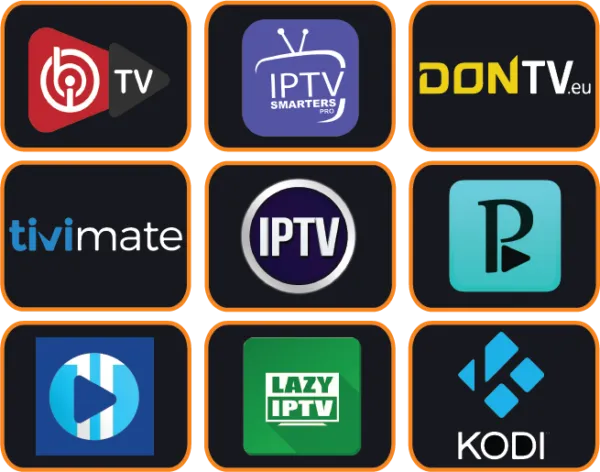
The app you choose shapes your whole experience with IPTV on Firestick. Here are the players we recommend most often to our customers:
| App | Best for | Price |
|---|---|---|
| TiviMate | TV-style channel grid, fast zapping, recording | Free, optional Premium |
| IPTV Smarters Pro | Beginners, simple menus for live TV, movies and series | Free to download |
| OTT Navigator | Advanced users who like to customise everything | Free, optional Premium |
For most people, TiviMate gives the best experience with IPTV on Firestick because its channel grid looks like a classic TV guide and zapping is very fast. If you want recording, catch-up and several playlists, you can unlock TiviMate Premium. If you prefer something very simple, IPTV Smarters Pro is a great first choice.
How to install the app with Downloader
- Open Downloader.
- In the address field, type the official website address of the app you chose, as published by its developer.
- Follow the download link for the Android or Fire TV version of the app.
- When the download finishes, select Install.
- Choose Done, then delete the installation file when Downloader offers it, to save space on your Firestick.
Always download apps from the developer’s official website or from the Amazon Appstore. Avoid modified versions shared on unknown websites: they can contain malware and often stop working after an update.
Step 4: Add your IPTV login
Once the app is installed, open it and add your subscription. Most players let you choose between two types of login.
Option A: Xtream Codes (recommended)
- Choose Xtream Codes or Login with Xtream Codes API.
- Enter any name for the playlist, for example “IPTV-Point”.
- Enter the username, password and server URL exactly as they appear in your welcome message.
- Confirm and wait while the app loads live TV, movies, series and the TV guide.
Option B: M3U playlist
- Choose M3U playlist or Load playlist from URL.
- Type or paste the M3U link you received.
- Add the EPG link too if your app asks for it, so the TV guide appears.
Xtream Codes is usually the better option for IPTV on Firestick, because it loads the channels, the on-demand library and the TV guide automatically and keeps them organised in separate sections. To learn more about the difference, read the Xtream Codes and M3U answer in our IPTV FAQ.
Step 5: Best settings for smooth streaming
Your IPTV on Firestick is now working. These small adjustments make the picture smoother and the app faster, especially during live sports.
- Use the best connection: if possible, use an Ethernet adapter or connect to the 5 GHz Wi-Fi band of your router.
- Close background apps: apps left open in the background use memory. Restart your Firestick from time to time to free it.
- Keep everything updated: install Fire OS updates and update your IPTV app when a new version is available.
- Choose the right player settings: in TiviMate or Smarters, try switching the video decoder between hardware and software if a channel stutters.
- Turn off data monitoring: in Settings, Preferences, Data Monitoring, turn it off so the Firestick does not reduce video quality.
- Clear the cache: in Settings, Applications, Manage Installed Applications, select your IPTV app and clear its cache if it becomes slow.
With these settings, most customers enjoy smooth HD and 4K channels on Firestick without any buffering. If your internet is below 15 Mbps, choose HD channels instead of 4K for the best result.
Which Firestick model is best for IPTV?
Every current Fire TV device can run IPTV on Firestick, but the experience is not identical. Newer models open apps faster, switch channels more quickly and handle 4K streams with less effort. Here is a quick comparison to help you choose.
| Device | Max quality | Best for |
|---|---|---|
| Fire TV Stick (HD) | Full HD | Smaller TVs, bedrooms, budget setups |
| Fire TV Stick 4K | 4K Ultra HD | Most living rooms and 4K TVs |
| Fire TV Stick 4K Max | 4K Ultra HD | Fastest zapping, Wi-Fi 6 routers |
| Fire TV Cube | 4K Ultra HD | Power users, Ethernet built in |
If you watch a lot of live sports, a 4K Max or Cube model is worth it: the extra memory keeps TiviMate fast even with a large channel list, and Wi-Fi 6 or Ethernet gives a more stable picture during busy match nights.
How to watch 4K channels with IPTV on Firestick
4K channels look spectacular on a large TV, but they need the right combination of device, connection and settings. To enjoy 4K with IPTV on Firestick, check these points:
- A 4K-capable model: the basic HD Fire TV Stick cannot output 4K. Use a 4K, 4K Max or Cube model.
- A 4K TV and HDMI port: plug the Firestick into an HDMI port that supports 4K, often marked HDMI 2.0 or with an HDCP 2.2 label.
- Display settings: in Settings, Display & Sounds, Display, set the video resolution to Auto or 2160p.
- Enough speed: plan for at least 25 Mbps dedicated to the Firestick while you watch.
If a 4K channel stutters while HD channels play smoothly, the cause is almost always the connection. Switch to a cable or the 5 GHz Wi-Fi band, or choose the FHD version of the same channel for that evening. Our support team can tell you which channels are available in 4K and help you test your setup.
Organise your channels and favourites
A large channel list is great, but nobody wants to scroll through thousands of channels every evening. Take five minutes to organise your IPTV on Firestick and daily zapping becomes much faster.
- Create favourites: in TiviMate, long-press the select button on a channel and choose Add to favourites. In IPTV Smarters Pro, use the heart icon.
- Hide groups you never watch: most players let you hide entire countries or categories from the list.
- Reorder groups: move your main country and your sports channels to the top.
- Use the TV guide: the EPG shows what is on now and next, so you find programmes without opening each channel.


How to update your IPTV app on Firestick
App developers release updates that fix bugs and improve playback. Apps installed from the Amazon Appstore update automatically, but apps installed with Downloader do not always update by themselves.
- Open your IPTV app and look for an update notice in the settings or on the home screen.
- If there is none, open Downloader and download the latest version from the developer’s official website.
- Install it over the old version. Your playlist and favourites are normally kept.
Keeping the app up to date is one of the simplest ways to keep IPTV on Firestick fast and reliable.
Parental control and family use
If children use the same TV, most IPTV players include a parental control option. You can set a PIN code and lock adult or other categories, so only the channels you choose are visible without the code. On Firestick itself, you can also enable parental controls in Settings, Preferences, to require a PIN before purchases or before opening certain apps.
For families who watch on several screens at the same time, remember that each screen uses one connection. A 2 or 3 device plan lets everyone watch different channels simultaneously.
Common problems and how to fix them
The app says “Invalid login”
Check your username and password letter by letter, because they are case-sensitive. Copy the server URL exactly, including http:// and the port number if there is one. A single wrong character is the most common reason IPTV on Firestick does not connect.
Channels buffer or freeze
Restart your router and your Firestick, then test your internet speed. If the Wi-Fi signal is weak, move the router closer or use a cable. Our guide to fixing buffering gives many more solutions, and our team can check your line on WhatsApp.
The TV guide is empty
Open the app settings and update or reload the EPG. With an M3U link, make sure you added the EPG address as well. The guide can take a minute to download the first time.
The Firestick is slow or full
Uninstall apps you no longer use and clear the cache of your IPTV app. Older Firestick models have little storage, so keeping them clean makes a visible difference.
Downloader cannot install the app
Go back to Developer Options and check that Install unknown apps is turned on for Downloader. On some models you need to restart the Firestick after changing this option.
IPTV on Firestick: frequently asked questions
Is it difficult to install IPTV on Firestick?
No. The whole process takes about 10 minutes the first time, and you only do it once. If you prefer, our team can guide you step by step on WhatsApp for free.
Which Firestick is best for IPTV?
Any recent Fire TV Stick works. If your TV supports 4K, choose a Fire TV Stick 4K model so you can enjoy Ultra HD channels. More memory and a faster processor also make apps open more quickly.
Can I use the same subscription on several Firesticks?
You can install the app on as many devices as you like, but the number of screens that can play at the same time depends on your plan. Choose a 2 or 3 device plan if several people watch at once. See our IPTV subscription plans.
Do I need a VPN for IPTV on Firestick?
A VPN is not required. Some users install one for extra privacy or when their internet provider slows down streaming. It is optional and works with every plan.
Is IPTV on Firestick legal?
IPTV is a technology, and using it on a Firestick is legal. What matters is the content: always make sure the channels and programmes you watch are allowed in your country.
For more information about the device itself, see the Amazon Fire TV article on Wikipedia. For setup guides on other devices, visit our complete IPTV setup guide.
Quick recap: to enjoy IPTV on Firestick you only need a Fire TV device, the Downloader app, a good player and your login. Once IPTV on Firestick is set up, it works every day with no extra steps, and you can repeat the same process to add IPTV on Firestick in another room in just a few minutes.
Conclusion
Setting up IPTV on Firestick is quick: prepare the device, install Downloader, choose a good player such as TiviMate or IPTV Smarters Pro, and enter your login details. With a stable connection and the right settings, your Firestick becomes a powerful TV box with thousands of live channels, movies and series. Test the service first with a free trial, and if you need help at any step, our team is one message away.
Ready to Watch IPTV on Firestick?
Get your 12-hour free trial and we will help you set it up in minutes.
Get My Free TrialSetup Help on WhatsApp